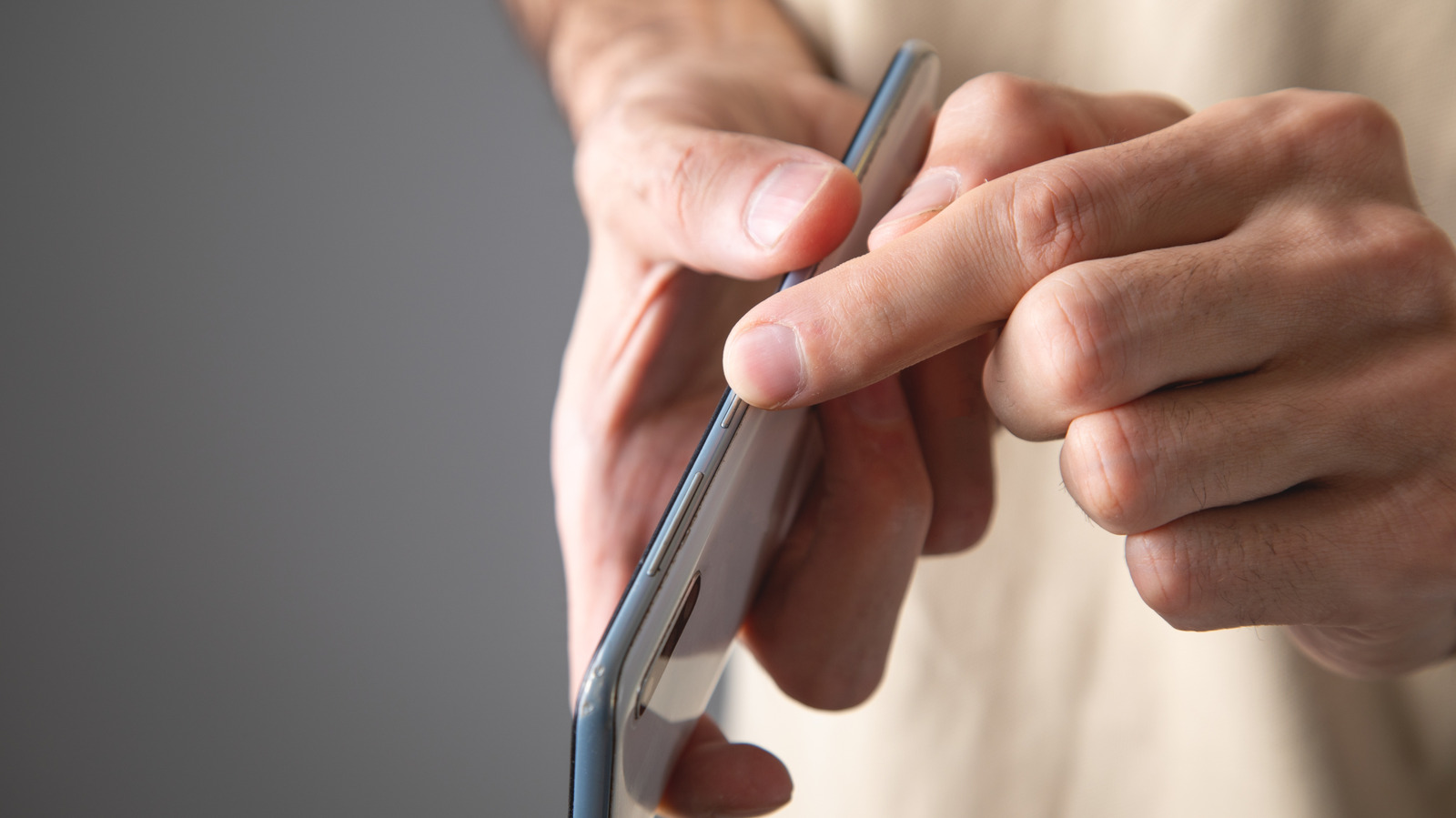
The power button on your Android phone, often referred to as the side button by Samsung, is commonly used to turn the display on and off. However, it offers several additional functionalities that can enhance your user experience. These functionalities include launching your digital assistant, opening the camera, activating Emergency SOS, and loading accessibility features. While some of these shortcuts are preconfigured, others may need to be set up manually.
Read More
Most of these power button features are compatible across various Android devices, including those from Samsung, Google, OnePlus, and Motorola. Variations may exist based on the manufacturer and the Android version in use, but users can easily customize these settings through their phone's configurations.
One key feature is the ability to launch a digital assistant by long-pressing the power button on newer Android phones, commonly set to Gemini. Users can customize which assistant is activated via this method. For instance, on Samsung devices, this can be adjusted through Settings under "Advanced Features" and selecting "Side Button." On Google Pixel phones, the option lies under Settings, System, and Gestures.
Another practical use of the power button is to open the camera more quickly. Double-pressing the power button typically launches the camera app, allowing users to capture moments without delay. Samsung users can further customize this shortcut by navigating to Settings and selecting their preferred camera mode. On Google Pixel devices, this option can also be accessed through the same settings menu.
The power button can also be programmed to end ongoing calls, which is especially useful when the touchscreen is not practical. This feature can be activated in the Accessibility settings; Samsung users find it under Settings, Accessibility, and Interaction and dexterity, while Google Pixel users can make this adjustment in Accessibility as well.
For emergencies, the Emergency SOS feature can be activated by pressing the power button a specified number of times—usually three or five. This functionality will call emergency services and notify designated contacts. Users can configure this feature through the Safety & Emergency settings on Samsung phones.
Lastly, several accessibility features can be accessed quickly via the power button. Samsung users can manage these shortcuts via Settings, under Accessibility, and Advanced settings. On Google Pixel devices, while direct access via the power button isn't available, other methods like volume buttons or gestures can be used to open the Accessibility Menu.